> For the complete documentation index, see [llms.txt](https://help.windmillsoft.kr/llms.txt). Markdown versions of documentation pages are available by appending `.md` to page URLs; this page is available as [Markdown](https://help.windmillsoft.kr/en/simplymessage/implementation/setting-multiple-outgoing-numbers.md).
# Setting Multiple Outgoing Numbers
#### Registering Outgoing Numbers
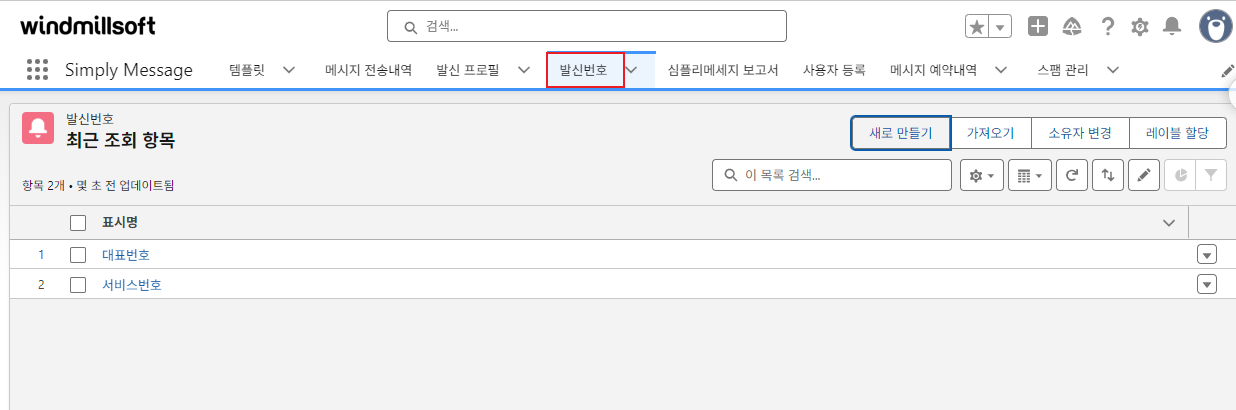
1. You can manage outgoing numbers in the Simply Message app.
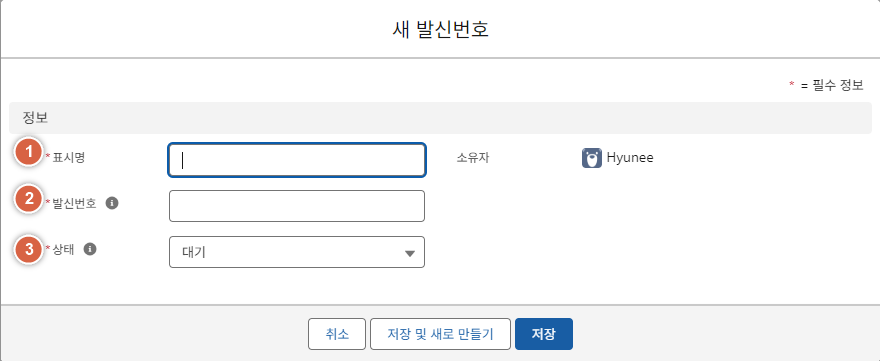
① Display Name: The title of the outgoing number
② Outgoing Number: The actual number used to send messages
③ Status: Whether the outgoing number is in use (numbers in any status other than Approved are not shown in the message sending window)
{% hint style="warning" %}
Even after you register an outgoing number in Salesforce, you must send the outgoing number information to the Windmillsoft messaging contact before it can be used.
{% endhint %}
#### Assigning Outgoing Numbers by Group
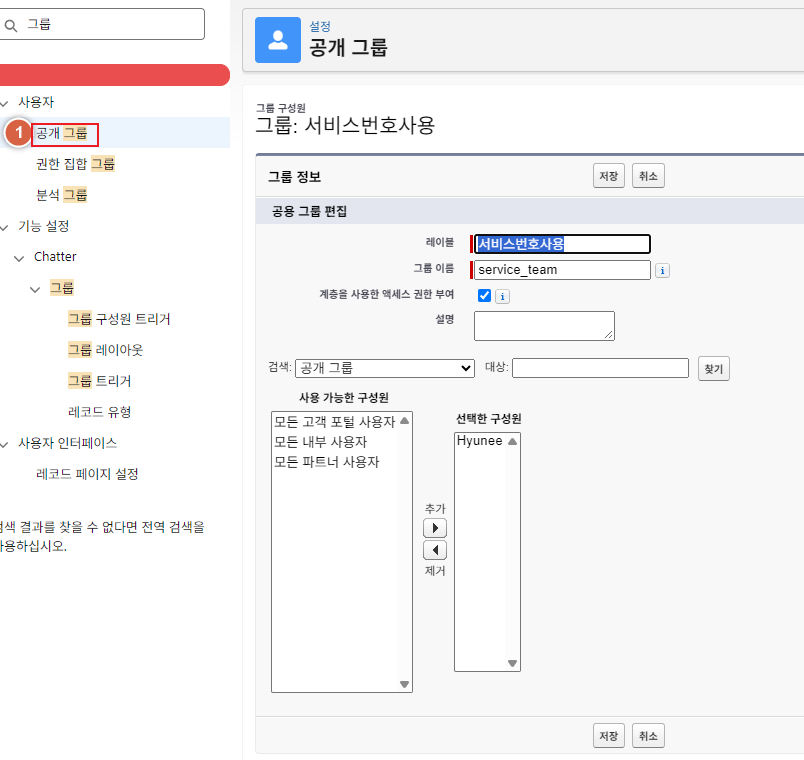
1. Create a group in Public Groups.
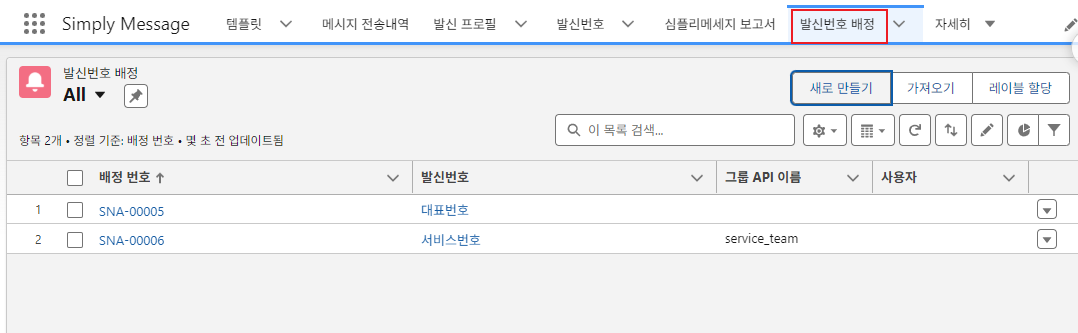
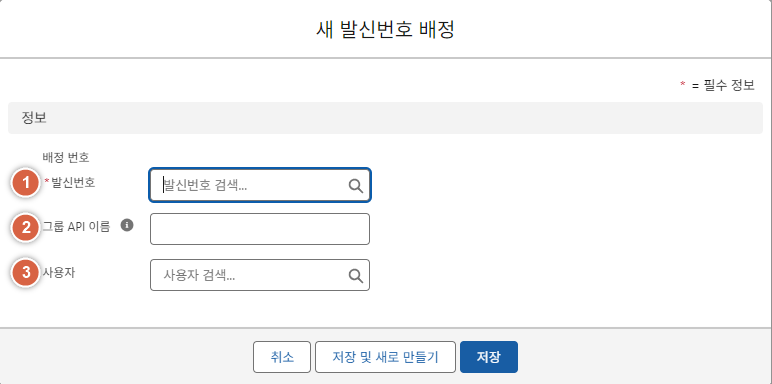
2. In the Outgoing Number Assignment tab, select an outgoing number and specify either the API name (group name) of a public group or a user.
① Outgoing Number: A record saved in the Outgoing Number object
② Group API Name (optional): The API name of the public group
③ User (optional): Assign the number to an individual user
{% hint style="info" %}
Select either Group API Name or User, not both. If you create an assignment without selecting a Group API Name or User, all outgoing numbers are visible to every user who has permission to send messages.
{% endhint %}
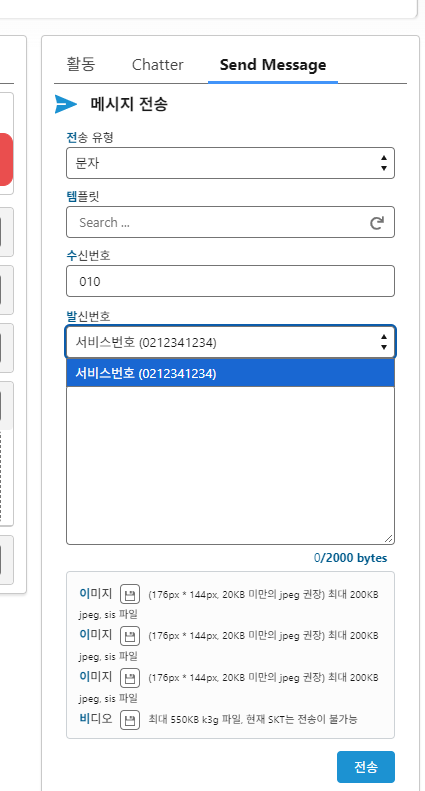
When a group is assigned, only that number is shown.