> For the complete documentation index, see [llms.txt](https://help.windmillsoft.kr/llms.txt). Markdown versions of documentation pages are available by appending `.md` to page URLs; this page is available as [Markdown](https://help.windmillsoft.kr/en/simplychat/salesforce-setup-guide/set-up-auto-response/setting-up-auto-response-in-salesforce/set-up-start-new-consultation-continue-consultation.md).
# Set up "Start New Consultation" / "Continue Consultation"
Configure the options that are displayed after a chat has ended.
**Note:** \
Auto Response testing requires either "Start New Consultation" or "Continue Consultation" to be configured.
Let's configure the screen that is displayed when a customer requests another chat after the previous chat has ended. The image below is an example of the screen displayed on KakaoTalk.
Example screen displayed on KakaoTalk
### Set up the display message
Configure the message displayed at the top before creating the consultation buttons.
1. Set it up as shown in the image below.\
The key setting is to set the Type field to Restart Chat.
### Start New Consultation \[Required]
When the customer selects Start New Consultation, a new Chat Session is created and the auto-response starts again from the beginning.
1. Set it up as shown in the image below.
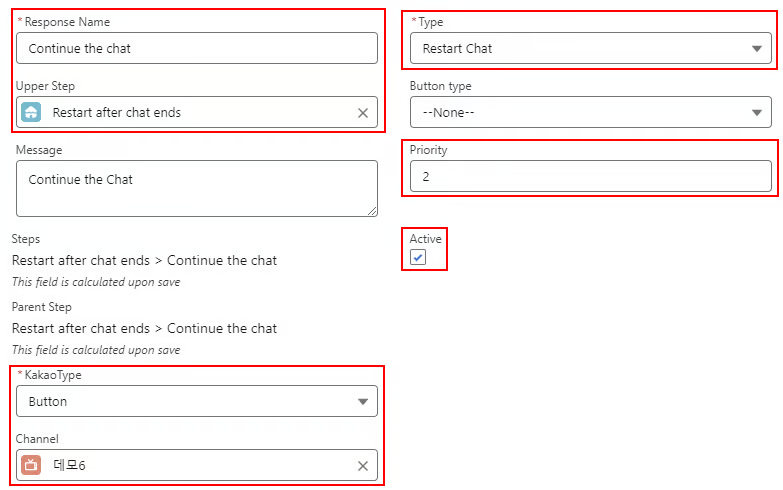
### Continue Consultation \[Optional]
Continue Consultation changes a previously ended chat session back to the Chatting status.
When a customer selects Continue Consultation, the Chat Session status changes to Chatting and a notification is sent through Omni-Channel. (Note: The assigned agent may change.)
1. Set it up as shown in the image below.\
Because the button label displays the Name value, set it to the desired name.
2. Configure the message that will be displayed to the customer when the Continue Consultation button is clicked.